How to Make a Custom Folder Icon on Mac (2026 Guide)
How to make a custom folder icon on Mac in 2026 — turn any image into a folder icon by hand, or use a ready-made set. Step-by-step, with a quick FAQ.
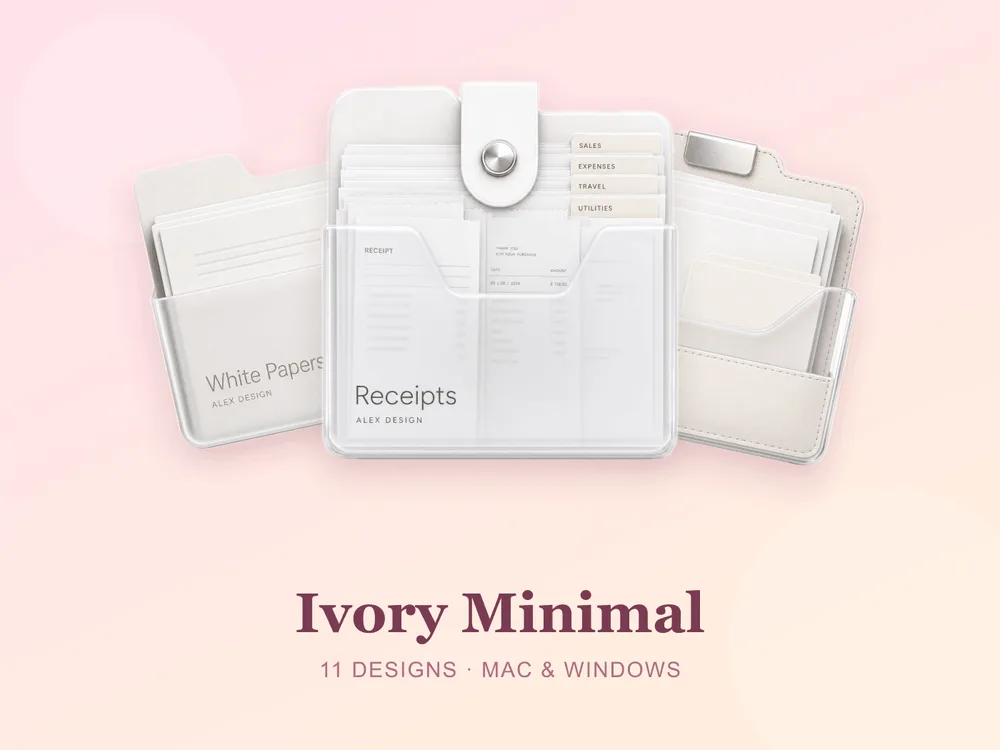
There are two ways to get a custom folder icon on a Mac: make one yourself from any image, or drop in a ready-made .icns set. This guide covers both — the full do-it-yourself method for when you have a specific picture in mind, and the 10-second shortcut for when you just want your desktop to look good. Neither touches your files; both are fully reversible.
Method 1: Turn any image into a folder icon (by hand)
Use this when you want a specific picture — a logo, a photo, a piece of art — as a folder icon.
- Open the image you want to use in Preview (any PNG or JPG works; a square image looks best).
- Press Cmd + A to select all, then Cmd + C to copy it.
- Select your folder in Finder and press Cmd + I to open Get Info.
- Click the small folder icon in the top-left of the Get Info window so it's highlighted with a blue outline.
- Press Cmd + V. The folder now uses your image.
Tips for a clean result:
- Use a PNG with a transparent background so the image doesn't sit in an ugly white square.
- Start from a square, high-resolution image (at least 512×512) so it stays sharp.
- For a "real" folder look rather than a flat photo, you'll want the image pre-shaped like a folder — which is exactly what a ready-made set gives you.
Method 2: Use a ready-made .icns set (the shortcut)
Making icons by hand is great for one folder. For a whole desktop that looks designed, a matching set is faster and far more cohesive — every folder shares one style instead of a dozen mismatched photos.
- Download and unzip a set — you'll get
.icnsfiles. - Select a folder → Cmd + I → drag the
.icnsonto the small icon in the top-left of Get Info. - Done. Repeat for each folder.
A few clean sets to start with:
- Ivory Minimal — clean off-white folders; simple, modern and endlessly calm.
- Frosted Sky — soft powder blues; light and easy on the eyes.
- Black Gold — matte black with gold accents; luxe and perfect for dark mode.
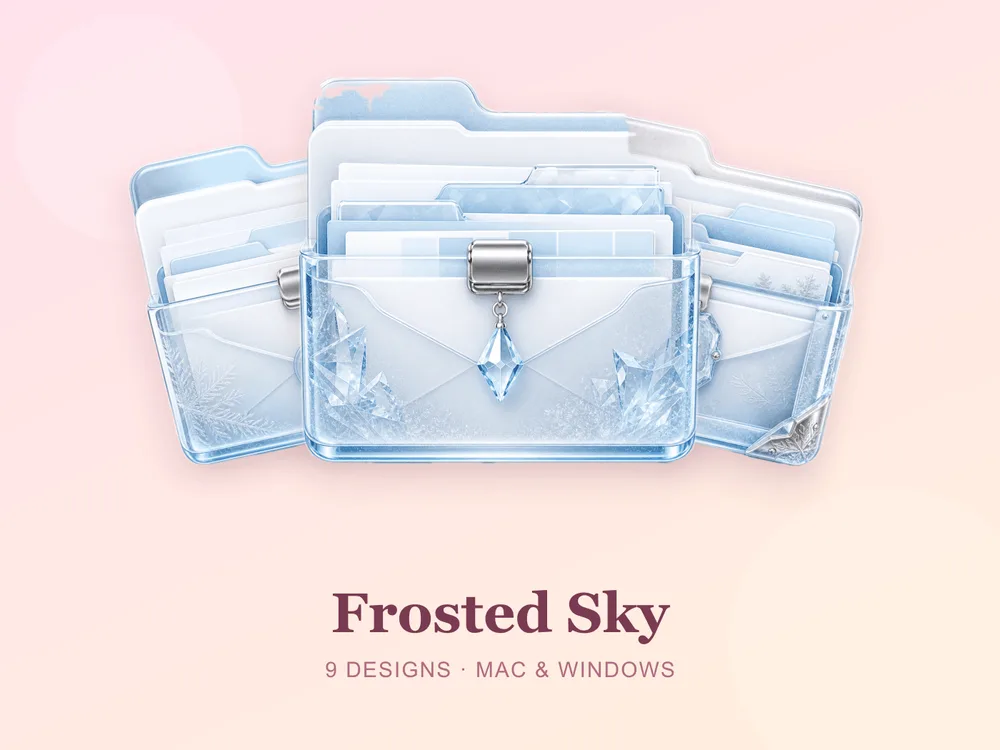
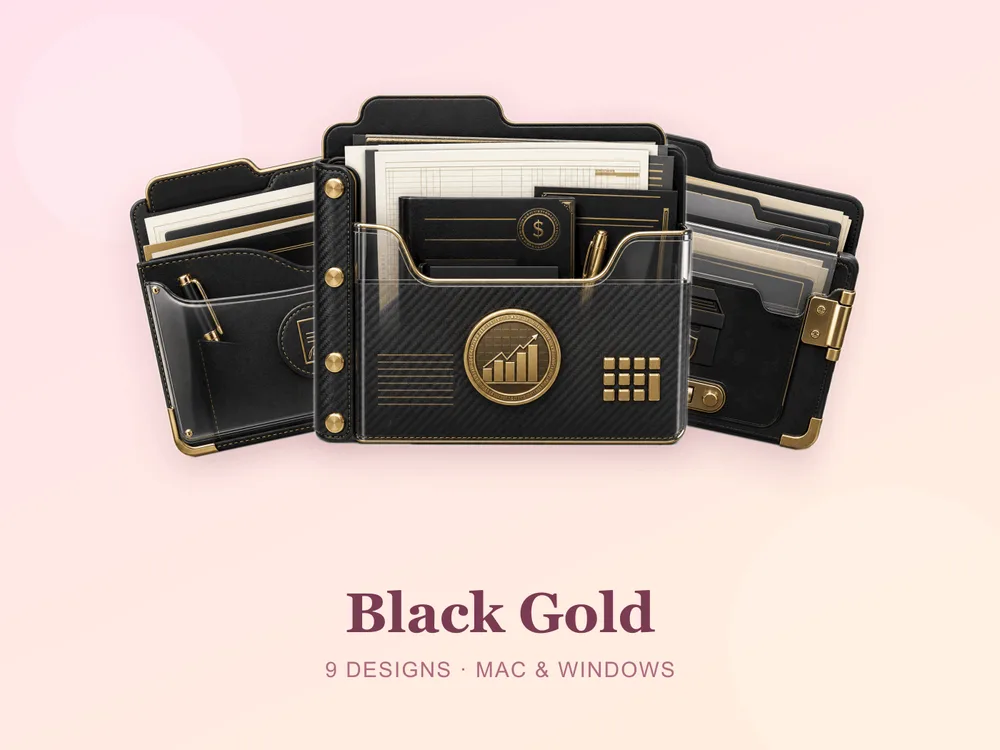
Browse more in the full gallery, or by mood in our minimalist and aesthetic roundups. Full drag-and-drop walkthrough: How to Change Folder Icons on Mac.
Making a custom Mac folder icon: quick FAQ
What image format works best for a Mac folder icon? A square PNG with a transparent background, at least 512×512, looks best. Preview can paste any PNG or JPG, but transparency and high resolution give the cleanest result.
What's the difference between pasting an image and using an .icns file?
Pasting (Method 1) puts a flat picture on the folder — great for a logo or photo. An .icns set (Method 2) is purpose-built as a folder shape at multiple resolutions, so it looks like a real, crisp folder at every size.
Do I need any extra software? No. macOS does it all natively with Preview and Get Info — no downloads or design apps required.
Will this work on Windows too?
The method differs (Windows uses .ico files via Properties → Customize), but every FolderIcons set includes both — see How to Change Folder Icons on Windows.
Can I undo it later? Always. Open Get Info, click the icon in the top-left, and press Cmd + X to revert to the default folder. Your files are never touched.
The shortcut to a designed desktop
Making one custom icon by hand is a fun trick — but for a desktop that looks intentional, one matching set applied across your most-used folders does it in minutes, with a consistency hand-made icons can't match.
Browse the full FolderIcons gallery — original, hand-crafted .icns sets in every style. Three skins are free for every member; unlock the ones you love with credits and own them forever. No subscription, no expiry.
Your folders, exactly the way you want them.