How to Change Folder Icons on Windows 11 & 10 (Easy Guide)
Customise folder icons on Windows 11 and 10 in a few clicks using .ico files. Change one folder or apply a whole icon pack — no extra software needed.
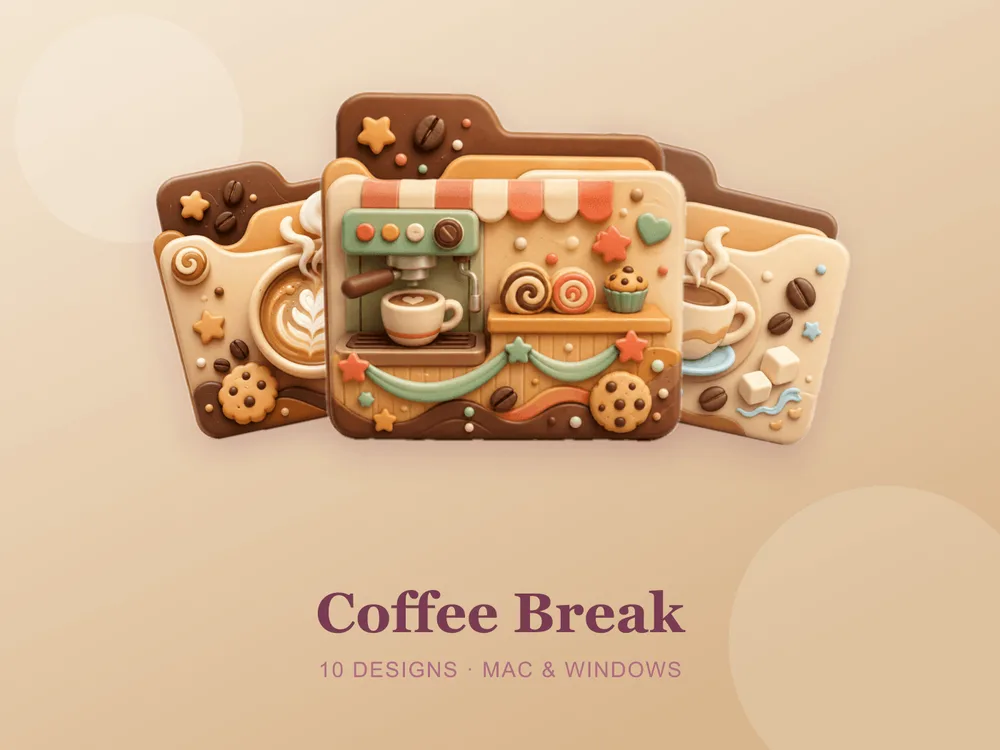
Windows folders all look the same — a generic manila folder, over and over. Swapping in custom icons makes important folders jump out instantly and turns a cluttered desktop into something you actually enjoy looking at. The whole process is built into Windows and takes about thirty seconds per folder.
Change a folder icon (Windows 11 & 10)
You'll need an icon in .ico format. That's the format Windows uses for icons — a single .ico file holds several sizes so it stays sharp everywhere.
- Right-click the folder you want to change and choose Properties.
- Open the Customize tab.
- Near the bottom, click Change Icon…
- Click Browse…, find your
.icofile, select it, and click Open. - Click OK, then Apply. Your folder now shows the new icon.
On Windows 11, if you don't see "Properties" right away, click Show more options at the bottom of the right-click menu first.
Applying a full icon pack
If you downloaded an icon pack, you'll have a set of .ico files. Repeat the steps above for each folder, picking the matching .ico for each one. A few minutes later your whole desktop or drive has a consistent, designed look.
Tip: keep the .ico files in a permanent folder (for example Documents\Icons). If you move or delete them later, Windows can't find the icon and the folder reverts to the default.
How to change it back
- Right-click the folder → Properties → Customize tab.
- Click Change Icon…
- Click Restore Defaults, then OK and Apply.
The icon didn't change — what now?
Windows sometimes caches old icons. If your new icon doesn't appear:
- Press F5 to refresh the desktop or File Explorer window.
- Sign out and back in, or restart File Explorer from Task Manager.
- Double-check the file is a real
.ico(a renamed.pngwon't work reliably).
Where to find great Windows folder icons
The best results come from a matching set designed to work together, not a pile of random downloads. Look for packs that ship proper .ico files at multiple resolutions so they look crisp on every screen.
FolderIcons makes original, hand-crafted folder icon skins as complete themed sets — and every download includes ready-to-use .ico files for Windows plus an install guide, so the steps above are effortless. Browse the gallery — three skins are free for every member, you unlock the rest once and keep them forever.
Give your desktop a glow-up.