Floral & Flower Folder Icons for Mac & Windows (2026)
The best floral and flower aesthetic folder icons for Mac and Windows in 2026 — peony, rose, sakura and soft petal sets, hand-picked. With a 60-second install guide and FAQ.
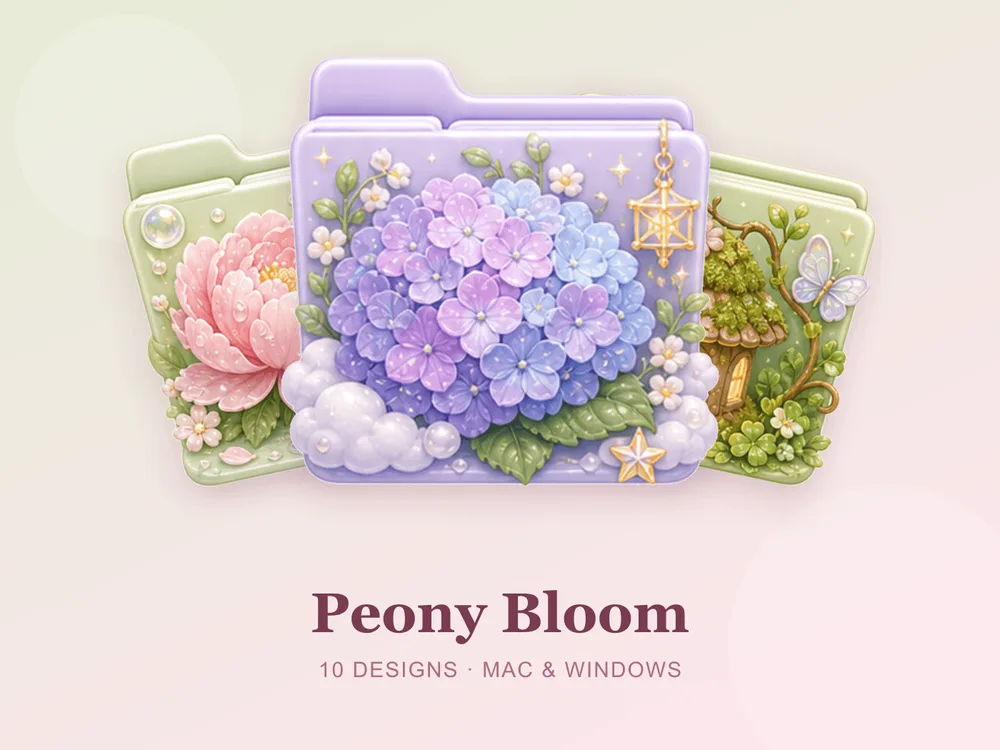
A floral desktop is spring that never ends. Peonies, roses, drifting sakura — a matching flower set turns a plain grid of folders into a windowsill in bloom, soft and alive without ever being loud. Swap the default blue Mac folder (or the plain Windows one) for a floral set and the whole screen feels gentler, warmer and quietly beautiful.
This is our hand-picked roundup of the best floral and flower aesthetic folder icons for 2026 — from lush peony and rose blooms to delicate sakura and soft petal tones. Every set is a complete, matching pack with .icns files for Mac and .ico/.png for Windows, so the garden palette stays consistent across your whole desktop.
What makes a floral folder icon set look good
"Flower aesthetic" is easy to overdo — too many blooms per folder and it reads like wallpaper; too pale and the flowers disappear. The sets that genuinely read as fresh and romantic share three things:
- One bloom, well placed. The best floral sets give each folder a single clear flower motif on a soft ground, instead of covering every surface in petals.
- A layered range. Good garden packs spread blush pink, petal cream and leafy green across the set so folders are easy to tell apart while still feeling like one bouquet.
- Consistency. Every folder shares the same finish and palette, so the desktop looks like one cohesive garden rather than a mix of clashing bouquets.
Best lush bloom sets
For the full-bloom, fresh-cut-flowers look:
- Peony Bloom — lush pink peonies in soft light; romantic, generous and quietly luxurious.
- Rose Blossom — classic roses on gentle tones; timeless, elegant and effortlessly pretty.
- Sakura Candy — drifting cherry-blossom pinks with a sweet finish; delicate, dreamy and springlike.
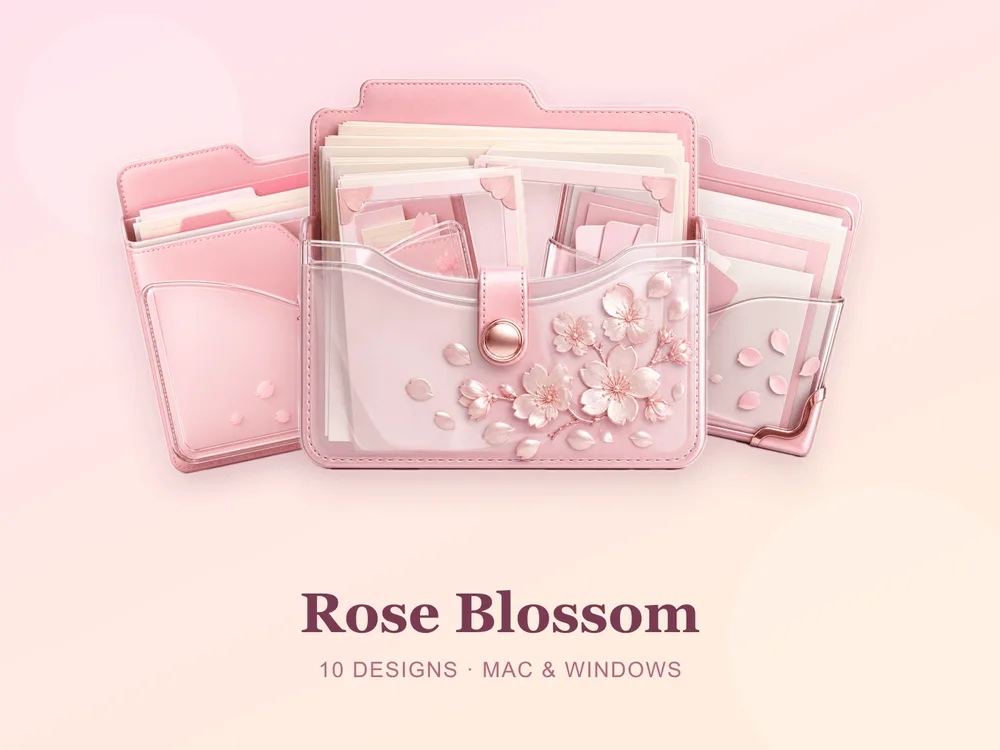
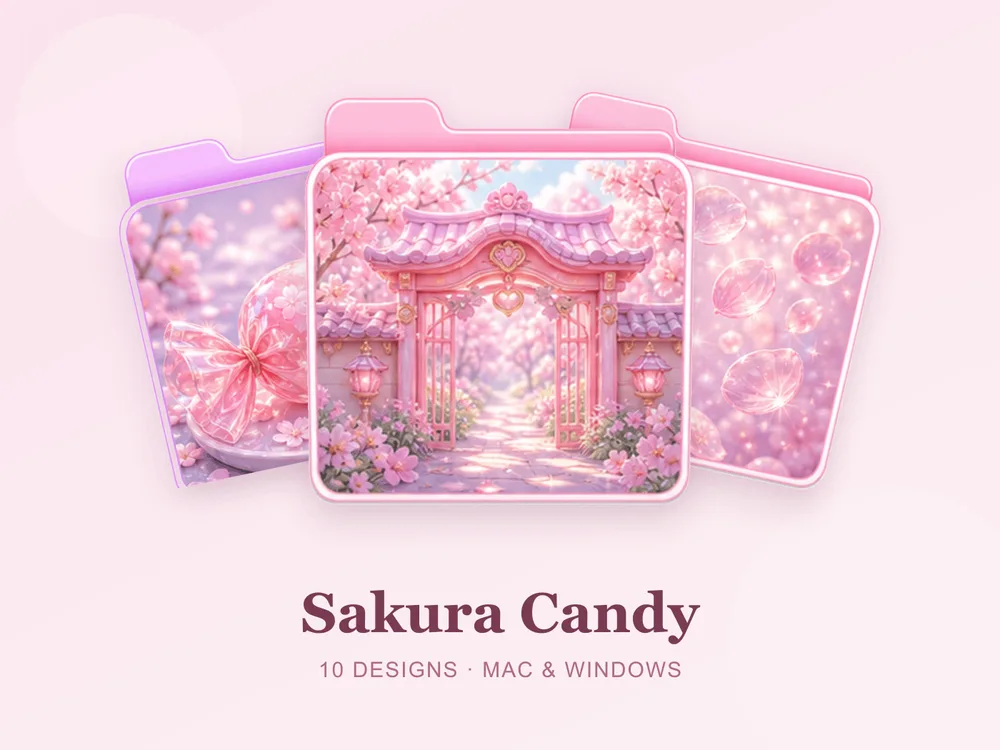
Best soft petal sets
For a gentler, more pastel take on the floral aesthetic:
- Lavender Bow — soft lavender with sweet bow accents; gentle, romantic and endlessly pretty.
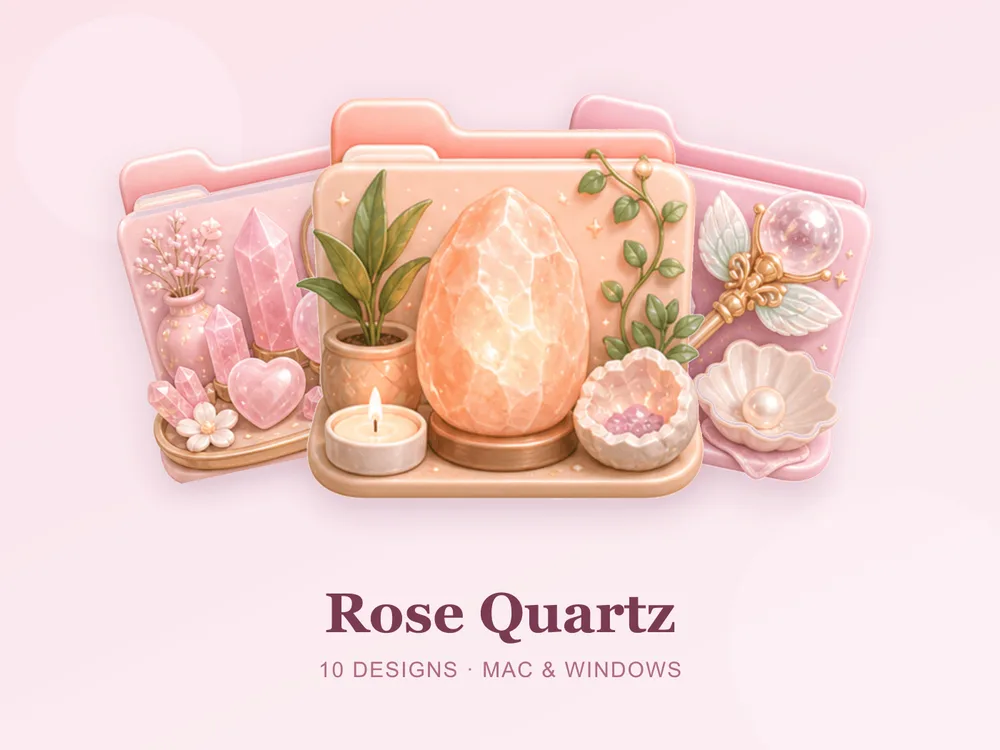
- Rose Quartz — lilac-and-blush crystal tones; soft, luminous and beautifully calming.
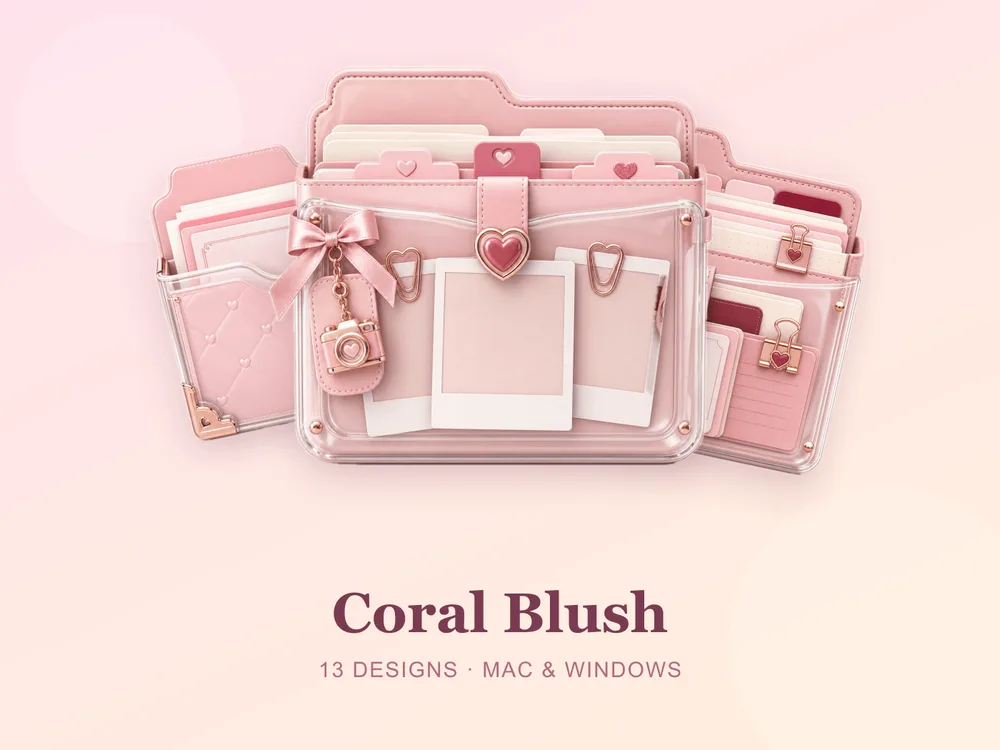
- Coral Blush — warm coral pinks with a fresh glow; sweet, lively and free for every member.
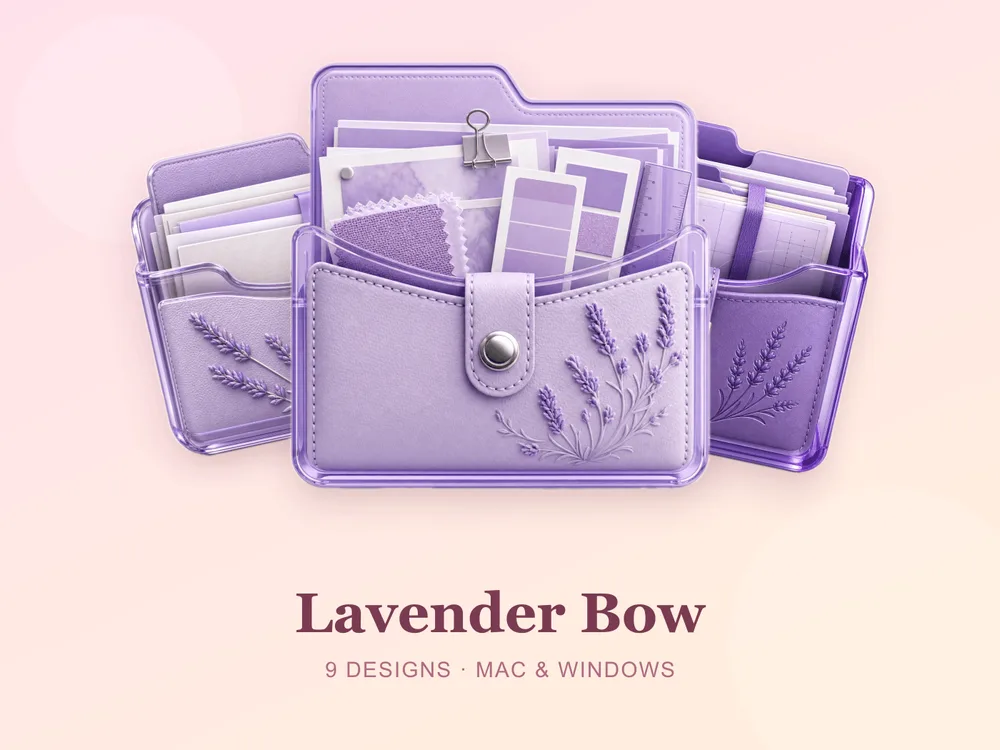
Why a matching floral set beats single icons
Most "free flower folder icon" downloads disappoint because they're single PNGs from different designers — put a dozen on one desktop and the pinks clash, the illustration styles fight and the garden effect collapses. Starting from one coherent set means every folder shares the same tone, finish and palette, so the whole screen reads as one designed bouquet from the first folder you change.
How to install them (60 seconds)
Once you've downloaded a set, applying it takes seconds:
- On Mac: Select a folder → press Cmd + I → drag the
.icnsfile onto the small icon in the top-left of the Get Info window. Full walkthrough: How to Change Folder Icons on Mac. - On Windows: Right-click the folder → Properties → Customize → Change Icon → pick the
.icofile. Full walkthrough: How to Change Folder Icons on Windows.
Want the new icons to turn into a genuinely tidy desktop? Follow our desktop organization guide.
Floral folder icons: quick FAQ
Are flower folder icons free? A few full sets on FolderIcons are free for every member — including Coral Blush from this list, plus Kawaii Beauty and Wild Print. The other floral sets are premium — unlock them once with credits and own them forever, with no subscription and no expiry.
Do floral icons look good on a light or white wallpaper? Yes. Soft petal tones sit beautifully on light backgrounds — the blooms stay clear and fresh, and the leafy greens give just enough contrast to keep folders legible.
Do they work on both Mac and Windows?
Yes. Every FolderIcons set ships .icns files for macOS and .ico/.png files for Windows, so the same garden look applies on either system in about 60 seconds.
Will they stay sharp on Retina or 4K? Yes. The sets are rendered at high resolution (up to 1024px), so edges and details stay crisp on Retina and 4K displays.
Can I undo it later? Always. On Mac, open Get Info and press Cmd + X on the icon to revert; on Windows, use Change Icon → Restore Defaults. Your files are never touched — only the folder's picture changes.
The shortcut to a desktop in bloom
The fastest way to a soft, romantic desktop is to commit to one floral palette and apply it across your most-used folders. Pick a lush peony pink, a drifting sakura or a soft lavender, stick to it, and the whole screen instantly reads fresh, gentle and permanently in season.
Browse the full FolderIcons gallery — original, hand-crafted sets across every style above. Three skins are free for every member; unlock the floral sets you love with credits and own them forever. No subscription, no expiry.
For more inspiration, see our pink folder icons and coquette folder icons.
Your folders, always in bloom.