Aesthetic Folder Icons for Windows 11 (2026 Guide)
How to give Windows 11 an aesthetic desktop with custom folder icons in 2026 — the best matching sets, a 60-second install guide, and a quick FAQ.
Windows 11 already looks cleaner than any Windows before it — rounded corners, soft shadows, a calmer taskbar. But the folders are still that same generic manila-yellow, and nothing drags down a nice desktop faster. The good news: swapping them for a matching set of aesthetic icons takes about a minute per folder and instantly makes Windows 11 feel like your setup. This guide covers the best sets and exactly how to apply them.
Every set below is a complete, matching pack with .ico and .png files made for Windows (plus .icns for Mac), so the look stays consistent across your whole desktop.
What to look for in Windows 11 folder icons
Windows 11's rounded, glassy design rewards icons that match its calm. The sets that look best on Windows 11 share three things:
- A cohesive palette. One matching set beats a dozen random downloads — the whole desktop reads as designed instead of cluttered.
.icofiles included. Windows' Change Icon dialog wants a real.ico. Every FolderIcons set ships them, so there's no converting.- High resolution. Windows 11 on a 4K or scaled display will show soft edges on low-res icons; look for sets rendered up to 1024px.
Best aesthetic sets for Windows 11
A few matching sets that sit beautifully against the Windows 11 look:
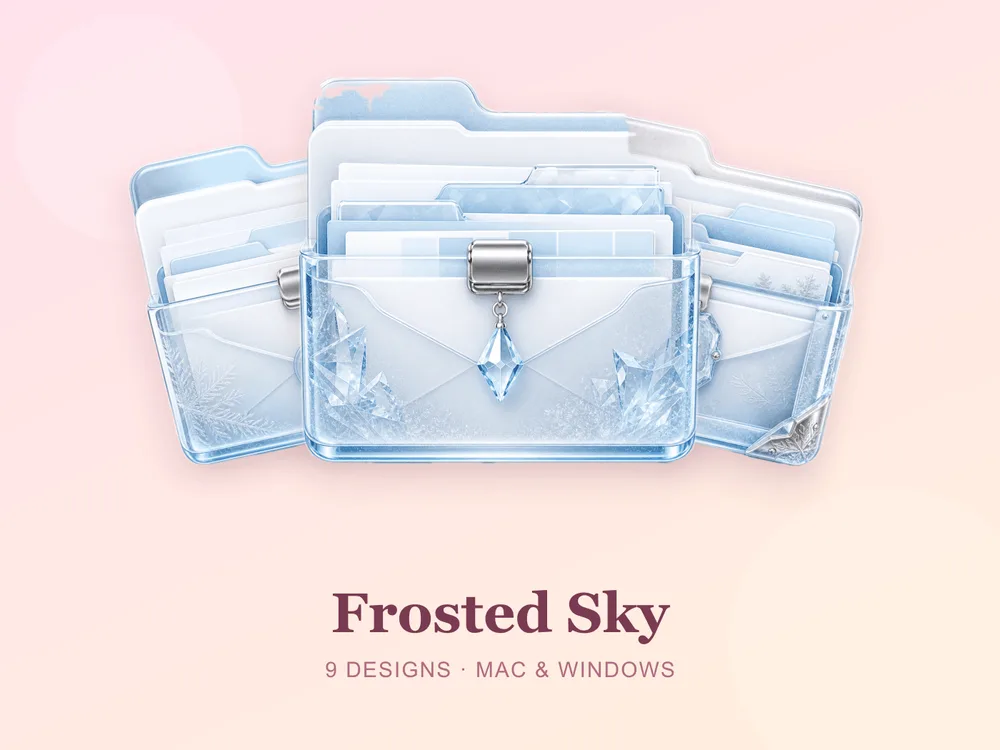
- Frosted Sky — soft powder blues with a frosted finish; light, clean and perfectly at home on Windows 11.
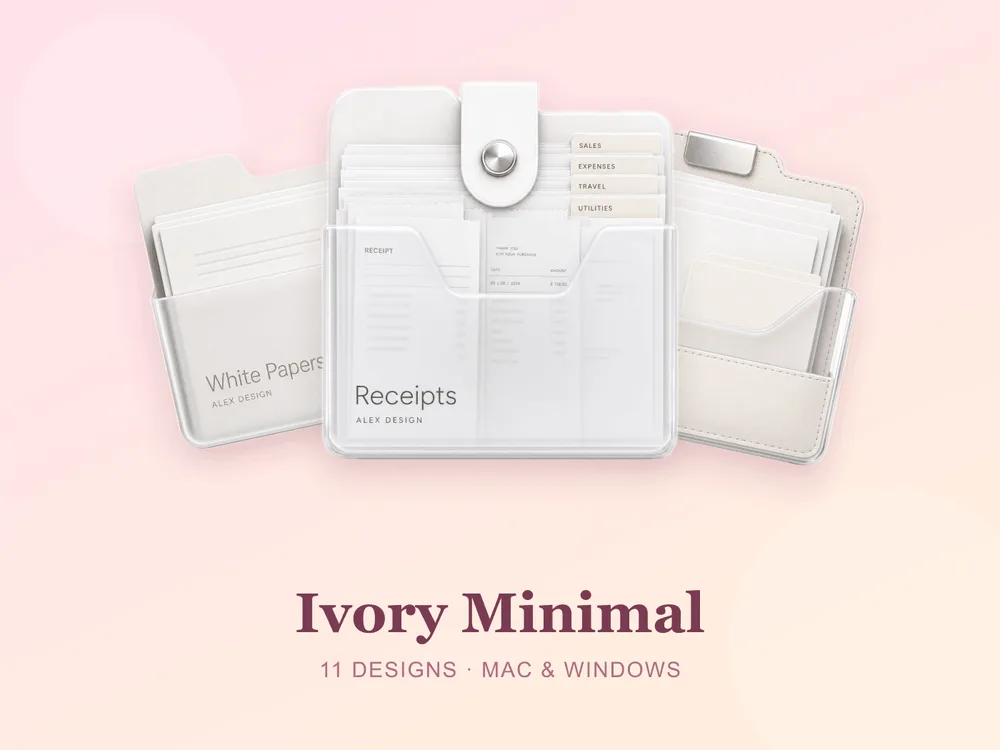
- Ivory Minimal — clean off-white folders with the gentlest shadow; simple, modern and endlessly calm.
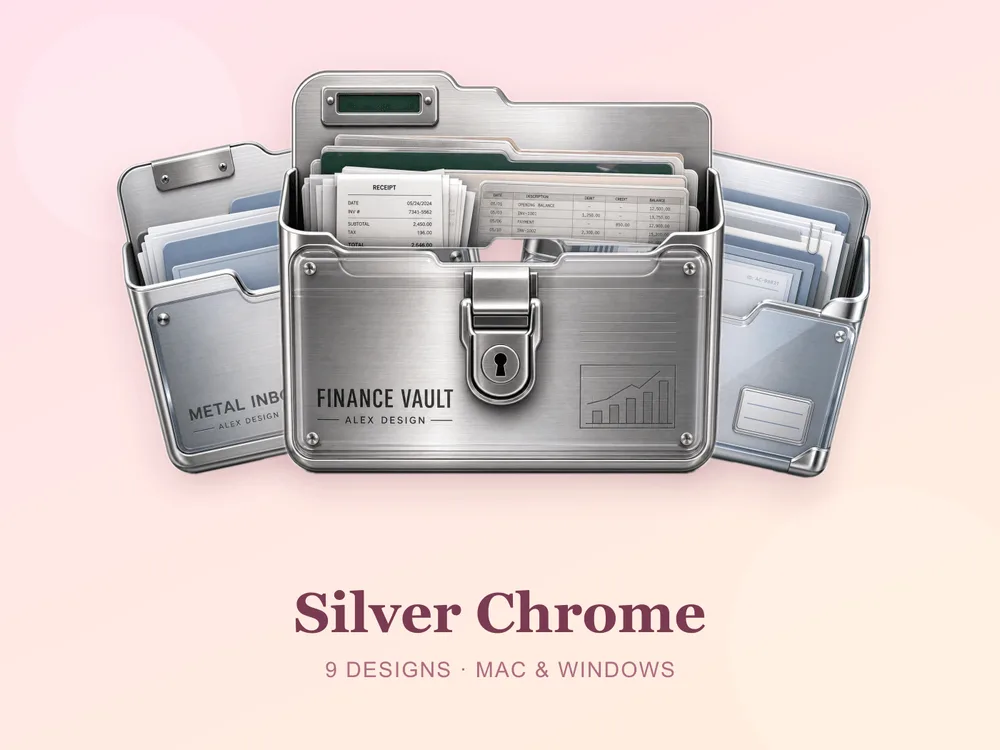
- Silver Chrome — cool metallic greys with a clean sheen; sleek, contemporary and quietly high-tech.
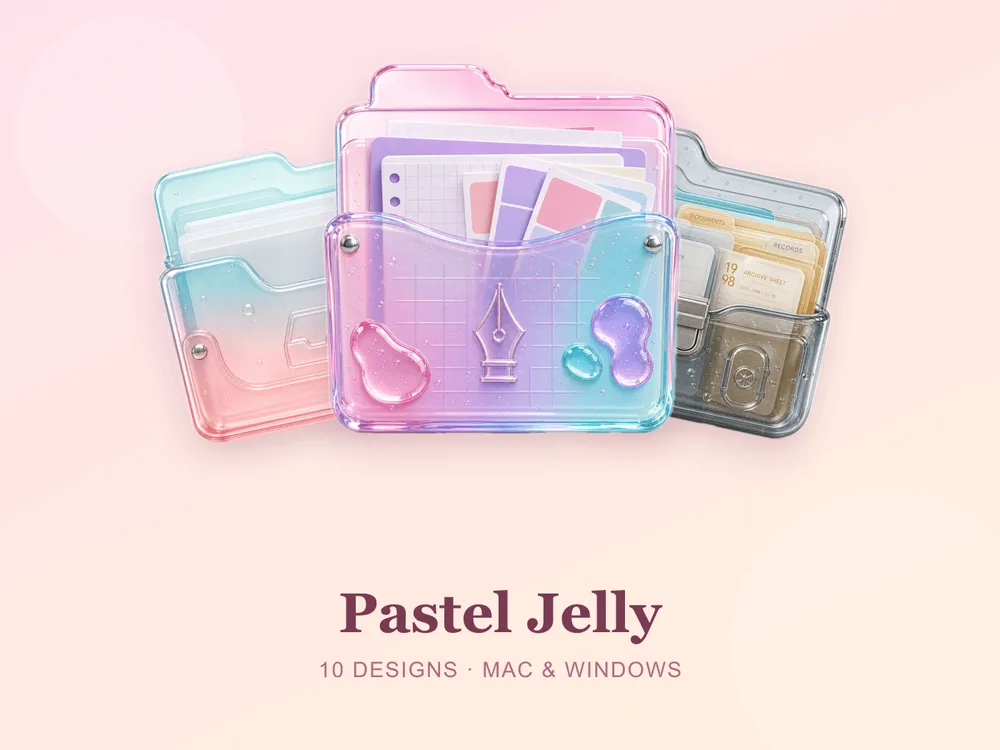
- Pastel Jelly — soft glossy pastels; sweet, playful and full of that rounded Windows 11 charm.
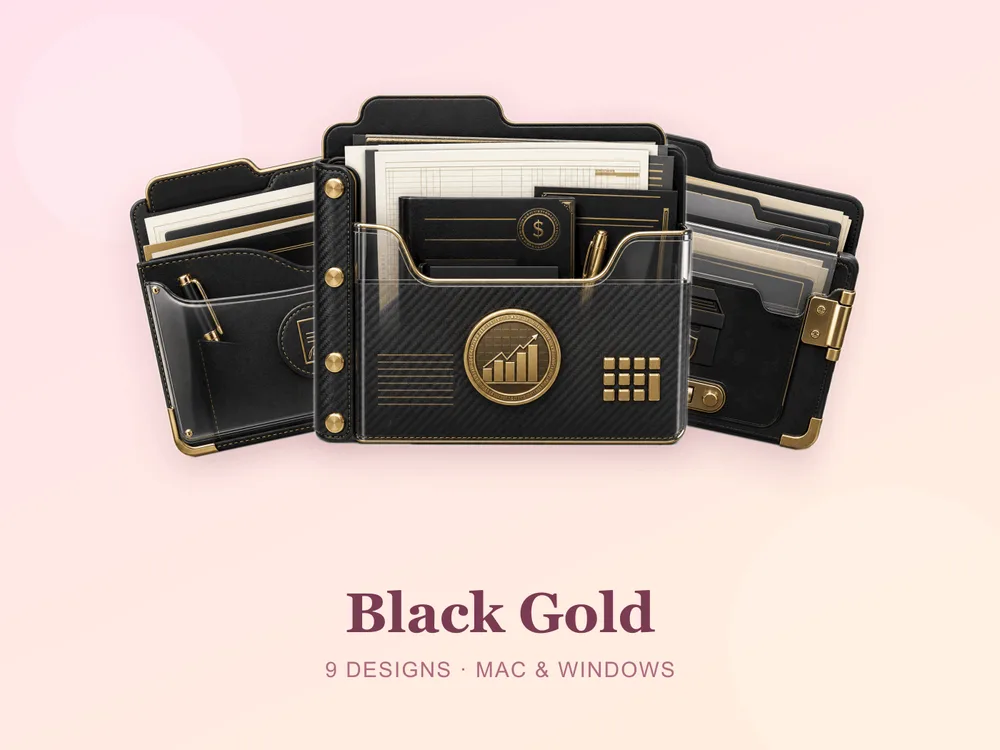
- Black Gold — matte black with gold accents; rich, confident and unmistakably luxurious for a dark-mode desktop.
Prefer a specific colour or mood? Browse our roundups of blue, pink, minimalist and black folder icons.
How to change folder icons on Windows 11 (60 seconds)
- Download and unzip your chosen set — you'll get
.icofiles inside. - Right-click the folder you want to change → Properties.
- Open the Customize tab → click Change Icon.
- Click Browse, pick the
.icofile you want, then OK → Apply. - If the icon doesn't refresh, press F5 on the desktop.
That's it — repeat for each folder. For the full walkthrough with screenshots, see How to Change Folder Icons on Windows. On a Mac too? Here's the Mac guide.
Once the icons are on, turn them into a genuinely tidy desktop with our desktop organization guide.
Aesthetic Windows 11 folder icons: quick FAQ
Are these folder icons free? A few full sets on FolderIcons are free for every member (Kawaii Beauty, Coral Blush, Wild Print). The rest are premium — unlock them once with credits and own them forever, with no subscription and no expiry.
Do I need extra software to change folder icons on Windows 11?
No. Windows 11 has icon-changing built in — the Properties → Customize → Change Icon dialog is all you need, and every set includes the .ico files it asks for.
Will custom icons slow down or break Windows 11? No. Changing a folder's icon only changes its picture — your files, paths and shortcuts are untouched, and there's no performance impact.
Can I undo it later? Always. Right-click the folder → Properties → Customize → Change Icon → Restore Defaults, and it's back to the standard Windows folder.
Will they stay sharp on a 4K or scaled display? Yes. The sets are rendered at high resolution (up to 1024px), so edges and details stay crisp even on 4K and scaled Windows 11 displays.
The shortcut to an aesthetic Windows 11 desktop
The fastest way to a desktop that finally matches Windows 11's clean look is to pick one matching set and apply it across your most-used folders. Choose a frosted blue, a minimal ivory or a luxe black-gold, stick to it, and your whole desktop instantly reads designed, cohesive and unmistakably yours.
Browse the full FolderIcons gallery — original, hand-crafted sets in every style. Three skins are free for every member; unlock the ones you love with credits and own them forever. No subscription, no expiry.
Your Windows 11 desktop, finally matching.