How to Make Your Mac Desktop Aesthetic (2026 Guide)
A simple 2026 guide to an aesthetic Mac desktop — wallpaper, matching folder icons, layout and organization, with a 60-second icon install walkthrough and FAQ.

An aesthetic Mac desktop isn't about one perfect wallpaper — it's about a few small things agreeing with each other. The right background, folders that match instead of clashing, and just enough order that opening your laptop feels calm rather than chaotic. The best part: you can get most of the way there in an afternoon, and the single biggest upgrade — swapping the default blue folders for a matching set — takes about a minute each. Here's the whole recipe.
1. Start with the wallpaper (but keep it calm)
Your wallpaper sets the mood, so pick one and let everything else follow it. Softer, lower-contrast backgrounds tend to look more "aesthetic" because your icons and folders stay readable on top. Choose a palette — warm neutrals, cool blues, pastel — and remember it for the next step.
2. Swap the default folders for a matching set
This is the step most people skip, and it's the one that makes the biggest difference. A dozen identical blue folders read as clutter; one matching set reads as design. Pick a set that echoes your wallpaper's palette:
- Warm, cosy wallpaper → Ivory Luxe or Amber Caramel
- Cool, calm wallpaper → Frosted Sky or Ivory Minimal
- Soft, pretty wallpaper → Coral Blush (free) or Lavender Bow
- Dark wallpaper → Black Gold or Marble Noir
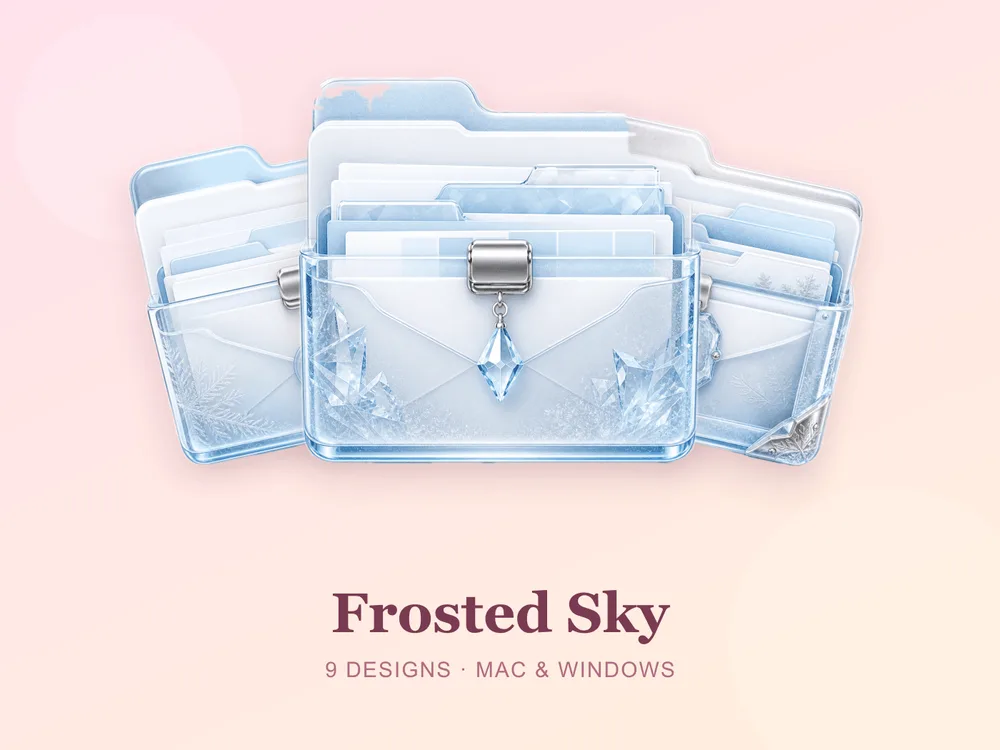
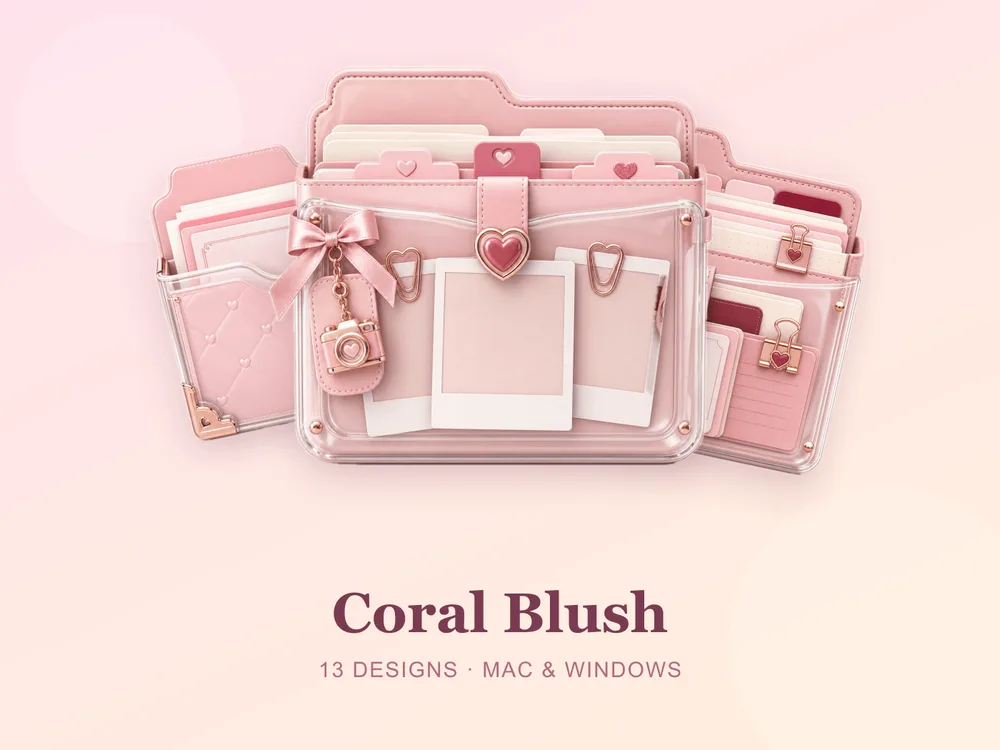
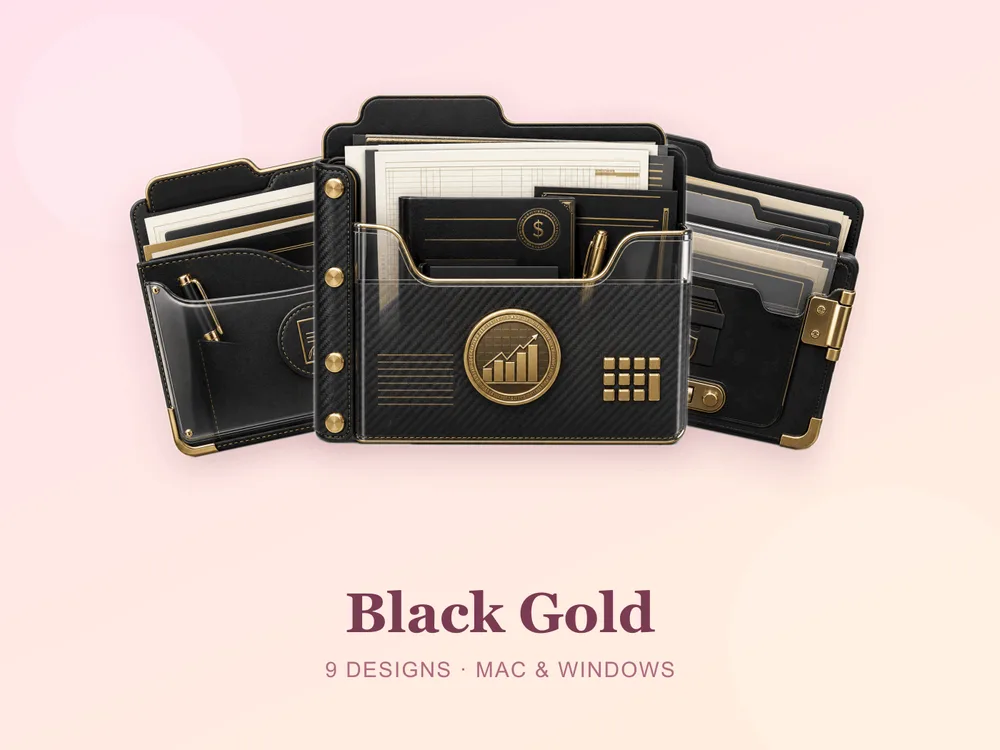
Browse more by colour and mood in our roundups of pastel, blue, brown and minimalist folder icons — or the full gallery.
3. Apply your icons (60 seconds each)
Once you've downloaded a set, applying it takes seconds:
- Select a folder → press Cmd + I to open Get Info.
- Drag the
.icnsfile onto the small icon in the top-left of the Get Info window. - Done — the folder updates instantly.
Full walkthrough with screenshots: How to Change Folder Icons on Mac. On Windows too? Here's the Windows guide.
4. Tidy the layout
Aesthetic and organised are the same thing here. Group your folders into a few clear zones, hide the ones you rarely open, and keep the desktop to the handful you actually use. Our desktop organization guide walks through a simple system that keeps the pretty desktop pretty.
5. Commit to one palette
The secret to every aesthetic desktop you've ever screenshotted: restraint. One wallpaper mood, one matching icon set, one tidy layout. Resist mixing three styles — the calm comes from everything agreeing.
How to make your Mac desktop aesthetic: quick FAQ
What's the easiest single change for an aesthetic Mac desktop? Swapping the default blue folders for one matching icon set. It's cheap, fast (about a minute per folder), and it does more for the overall look than a new wallpaper.
Are aesthetic folder icons free? A few full sets on FolderIcons are free for every member (Kawaii Beauty, Coral Blush, Wild Print). The rest are premium — unlock them once with credits and own them forever, with no subscription and no expiry.
Do I need any extra apps to change Mac folder icons?
No. macOS does it natively — select the folder, press Cmd + I, and drag the .icns onto the icon in the Get Info window.
Will this work on both Mac and Windows?
Yes. Every FolderIcons set ships .icns for macOS and .ico/.png for Windows, so the same look applies on either system in about 60 seconds.
Can I undo it later? Always. On Mac, open Get Info and press Cmd + X on the icon to revert. Your files are never touched — only the folder's picture changes.
Your aesthetic Mac desktop, in one afternoon
Pick a calm wallpaper, choose one matching folder set that echoes it, apply it to your most-used folders, and tidy the layout. That's the whole recipe — and the folder icons are the step that quietly ties it all together.
Browse the full FolderIcons gallery — original, hand-crafted sets in every style above. Three skins are free for every member; unlock the ones you love with credits and own them forever. No subscription, no expiry.
Your desktop, calm and cohesive.