How to Color-Code Your Folders on Mac & Windows (2026 Guide)
A simple 2026 guide to color-coding folders on Mac and Windows with custom icons — a system that actually works, a 60-second setup, and a quick FAQ.
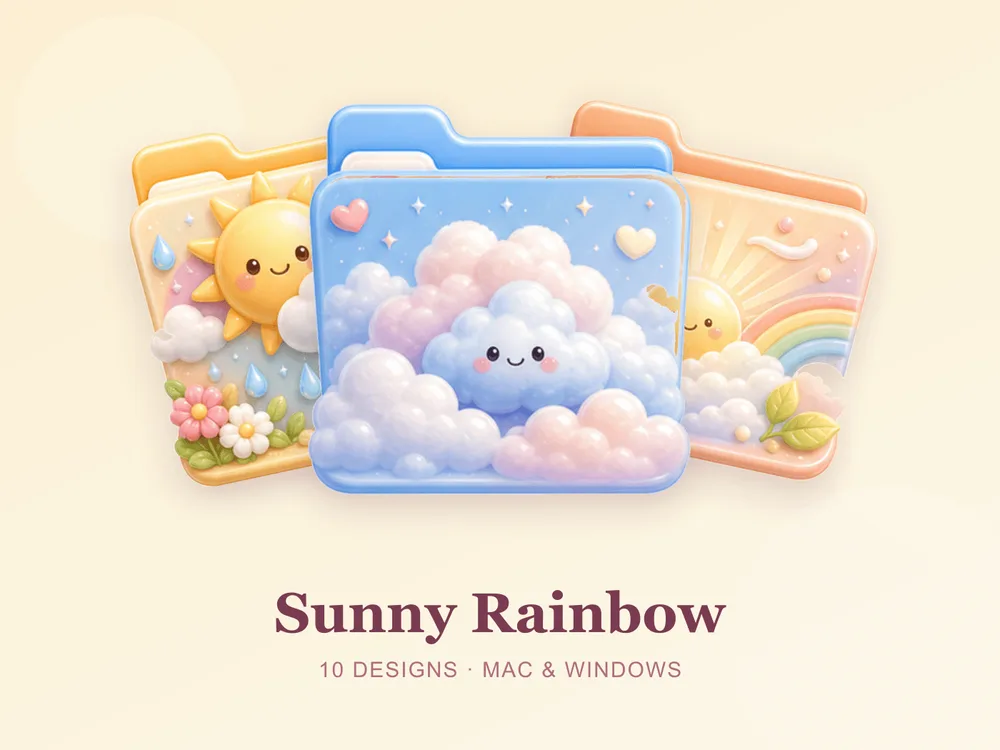
Colour is the fastest thing your brain reads — faster than a filename, faster than an icon shape. That's why colour-coding your folders works so well: give each area of your life a colour, and you stop reading your desktop and start seeing it. This guide covers a simple colour-coding system and exactly how to set it up on Mac and Windows using custom folder icons.
Why colour-coding beats renaming
You can rename folders all day, but you still have to read each label to find the right one. Colour skips that step. Blue means work, pink means photos, yellow means downloads — one glance and your eyes go straight to the right folder. It's the same trick physical planners and file cabinets have used forever, and it works just as well on a screen.
Step 1: Pick a simple colour system
Don't overthink it. A handful of clear categories beats a rainbow of twenty. A system that works for most people:
- Blue — Work / projects
- Pink or red — Personal / photos
- Yellow — Downloads / temporary
- Green — Money / admin
- Purple — Creative / hobbies
Adjust to your life — the only rule is one colour per meaning, used consistently.
Step 2: Get a matching multi-colour icon set
Single random icons in clashing styles undo the effect. A matching set gives you a coherent range of colours that look designed together. A few that are perfect for colour-coding:
- Sunny Rainbow — a full, cheerful spectrum; ideal for a whole colour system.
- Toy Blocks — bright primary tones; clear, distinct and easy to tell apart.
- Pastel Jelly — soft glossy pastels for a gentler, calmer colour code.
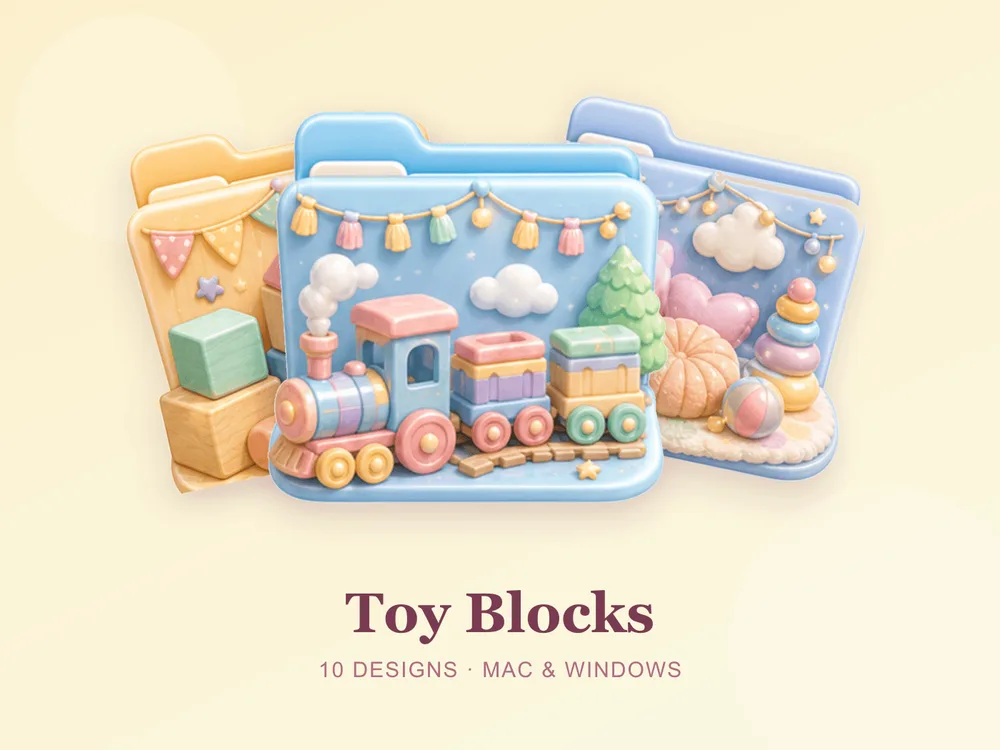
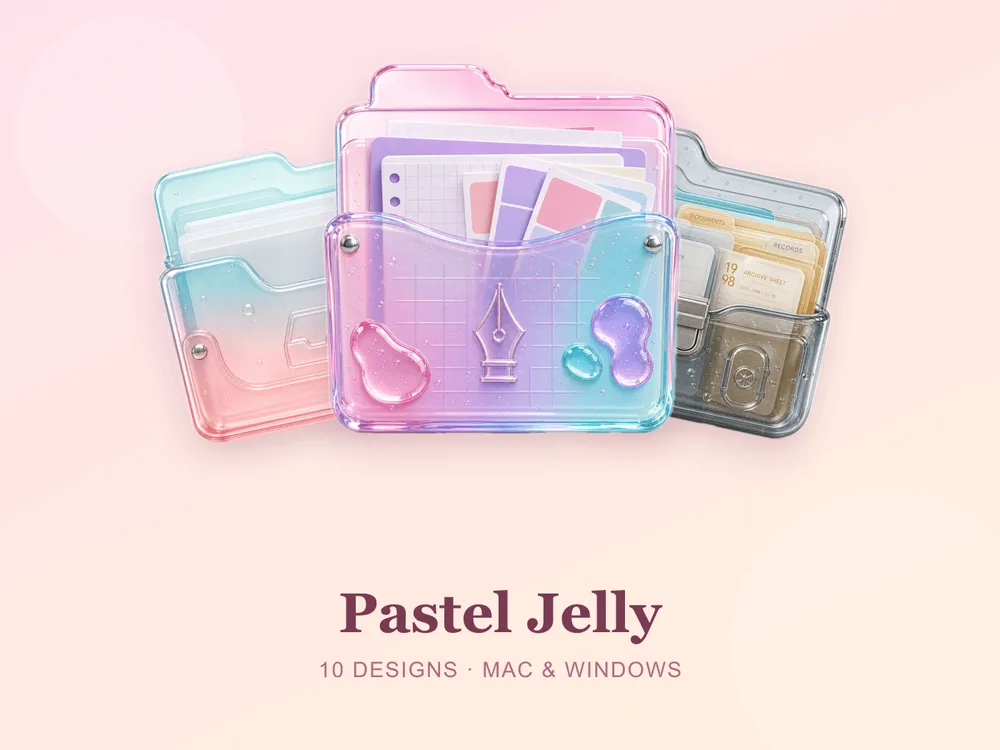
For more, see our rainbow & colorful folder icons roundup or the full gallery.
Step 3: Apply the icons (60 seconds each)
- On Mac: Select a folder → press Cmd + I → drag the
.icnsfile onto the small icon in the top-left of the Get Info window. Full walkthrough: How to Change Folder Icons on Mac. - On Windows: Right-click the folder → Properties → Customize → Change Icon → pick the
.icofile. Full walkthrough: How to Change Folder Icons on Windows.
Assign the same colour to every folder in a category, and repeat across your desktop.
Step 4: Keep it consistent
The system only works if you stick to it. When you make a new work folder, give it the blue icon straight away. Five seconds now saves you the hunt later. Pair this with our desktop organization guide for a desktop that stays tidy for good.
Color-coding folders: quick FAQ
Does macOS not already have folder colours? macOS has coloured tags, but they're small dots — they don't change the folder's look at a glance. Custom icons recolour the whole folder, so the colour is impossible to miss.
Is colour-coding better than folder names? They work together — names tell you exactly what's inside, colour tells you the category at a glance. Colour gets your eye to the right group; the name confirms the specific folder.
Are the icon sets free? A few full sets on FolderIcons are free for every member (Kawaii Beauty, Coral Blush, Wild Print). The multi-colour sets above are premium — unlock them once with credits and own them forever, no subscription.
Does this work on both Mac and Windows?
Yes. Every FolderIcons set ships .icns for macOS and .ico/.png for Windows, so the same colour system applies on either system in about 60 seconds per folder.
Can I undo it later? Always. On Mac, open Get Info and press Cmd + X on the icon; on Windows, use Change Icon → Restore Defaults. Your files are never touched.
The shortcut to a scannable desktop
The fastest way to a desktop you can navigate without reading is a simple colour system plus one matching icon set. Assign a colour per category, apply it consistently, and your eyes will find the right folder before your brain even reads a word.
Browse the full FolderIcons gallery — original, hand-crafted sets in every colour. Three skins are free for every member; unlock the ones you love with credits and own them forever. No subscription, no expiry.
Your folders, sorted by colour.