How to Change Folder Icons on macOS 27 Golden Gate
Two ways to change folder icons on macOS 27 Golden Gate — the built-in Customize Folder panel, and your own .icns artwork via Get Info. Updated for the public beta.
macOS 27 Golden Gate was announced at WWDC on June 8, 2026, went into public beta on July 13, and is expected to ship in September. It's the first macOS release that runs only on Apple silicon, and the last one with full Rosetta 2 support.
For anyone who cares about how their desktop looks, the headline is that Apple refreshed Finder and gave the system icons another pass — bolder colours, reworked Liquid Glass refraction, and a slider in Settings → Appearance that lets you dial the whole interface from mostly-transparent to mostly-opaque. Against a glassier system, plain blue folders look more out of place than ever.
Here are the two ways to change them, from fastest to best-looking. Everything below is based on the public beta; we'll re-check it when the final release lands.
Method 1: the built-in Customize Folder panel (3 seconds)
Apple added this in macOS 26 Tahoe and it carries over to Golden Gate:
- Control-click (right-click) the folder.
- Choose Customize Folder.
- Pick a colour circle, then a symbol — or click the Emoji button to use any emoji instead.
Finder tags work with it too: applying a tag tints the folder icon itself, not just a coloured dot beside the name. Note that macOS keeps its own system folders (Applications, Library, System, Users) off-limits.
This is the right tool when you just want this folder to be green. It's not the tool for a desktop that looks designed: the colours are Apple's presets, the mark is a system symbol or an emoji, and every other Mac on Golden Gate has exactly the same set.
Method 2: your own artwork with Get Info (60 seconds)
This is how you apply real icon art, and it hasn't changed in Golden Gate.
With an .icns file (best quality):
- Select the folder, press Cmd + I to open Get Info.
- Drag the
.icnsfile onto the small folder icon in the top-left of the Get Info window. - Release. The icon updates immediately.
With any image (PNG, JPG):
- Open the image in Preview, press Cmd + A, then Cmd + C.
- Select the folder, press Cmd + I.
- Click the small icon at the top-left so it's outlined, then press Cmd + V.
Use .icns when you have it — the format packs several resolutions into one file, so the icon stays sharp in the sidebar, on the desktop and at the largest Finder icon size. A PNG works, but give it a transparent background and at least 512px.
How to change it back
Select the folder → Cmd + I → click the icon at the top-left → press Delete. The default folder returns, and nothing inside the folder is ever touched.
Sets that suit Golden Gate's glassier look
Golden Gate leans harder into translucency, so glass and iridescent sets sit especially well on it:
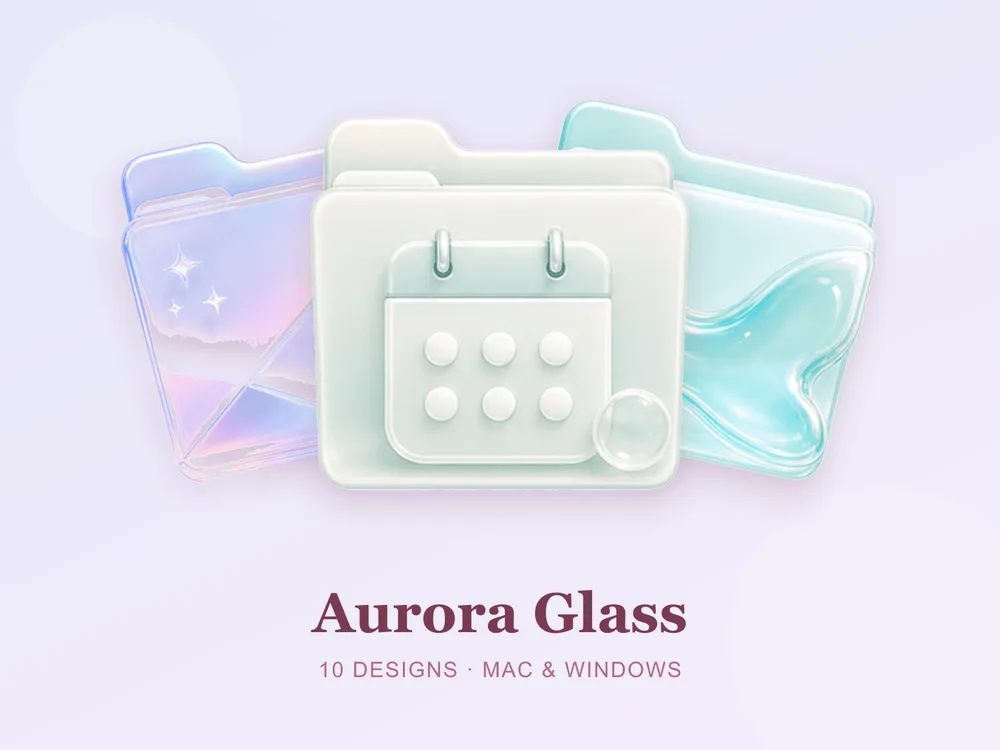
- Aurora Glass — frosted panes shot through with aurora light; luminous and completely at home on a glassy system.
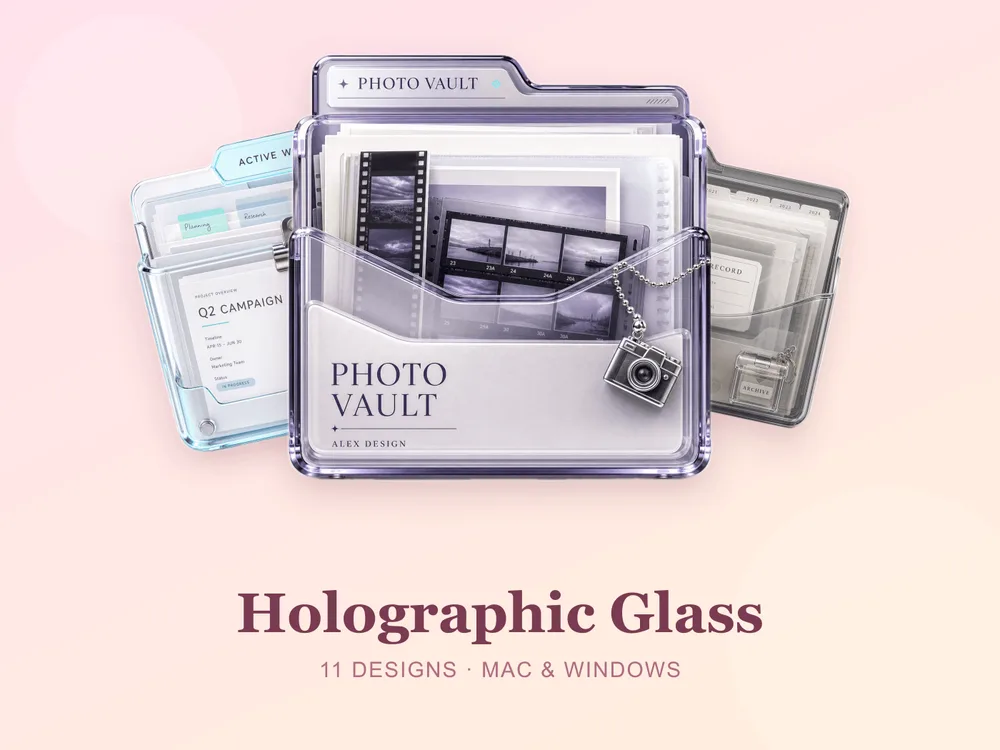
- Holographic Glass — iridescent film that shifts colour with the background; the closest thing to Liquid Glass in icon form.
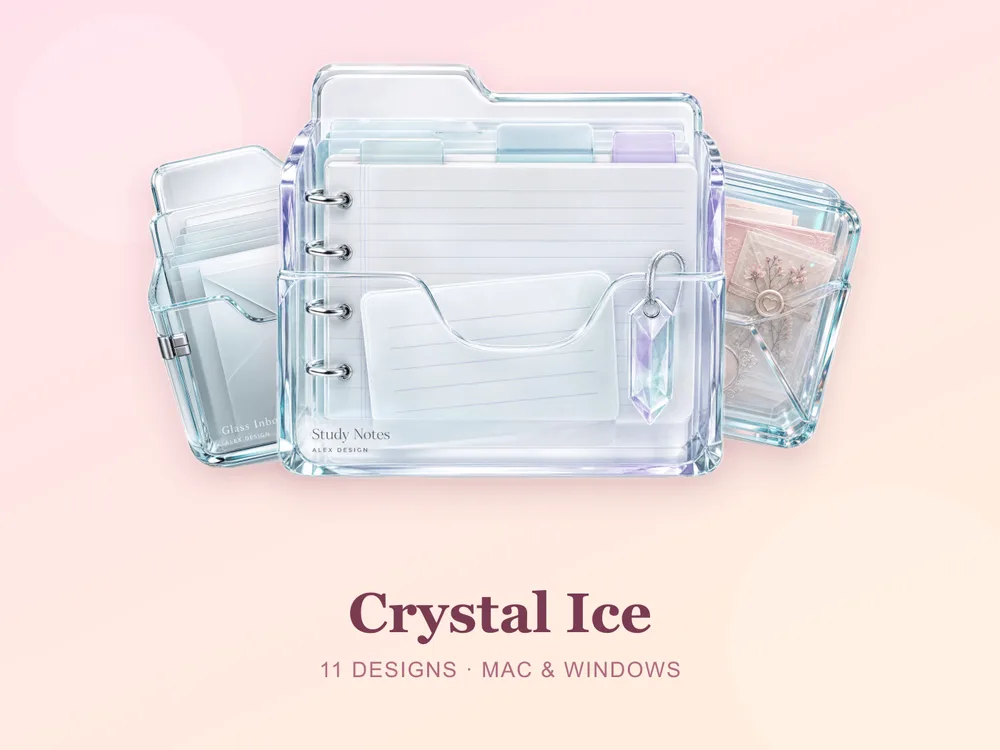
- Crystal Ice — clean, cold, faceted ice; crisp against both light and dark wallpapers.
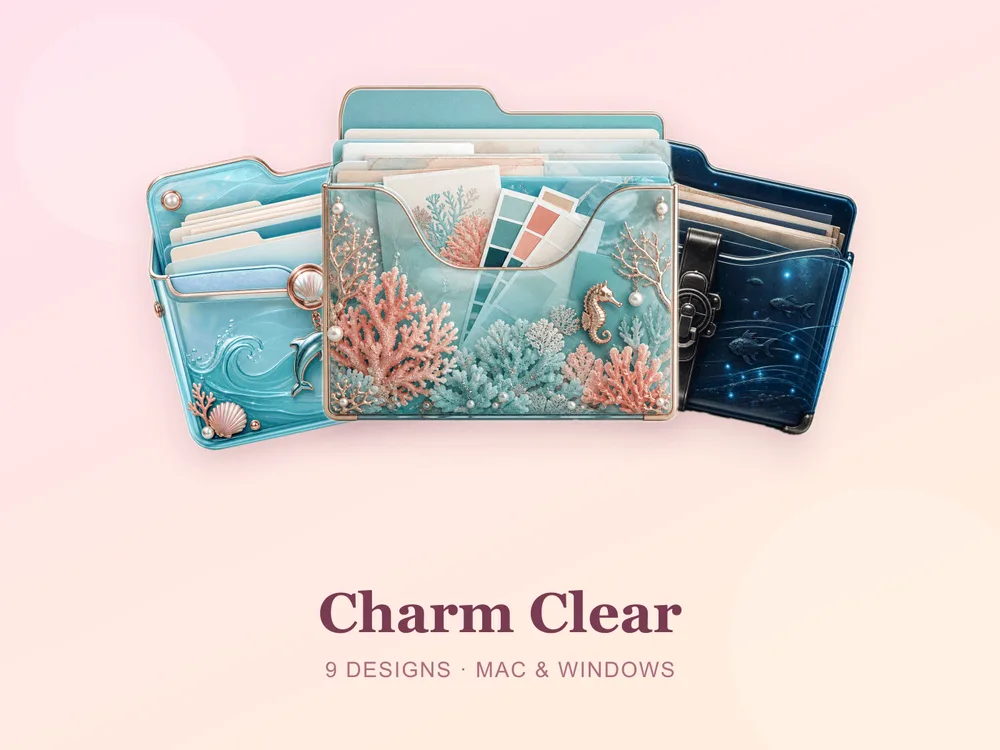
- Charm Clear — near-transparent folders with pinned charms; barely there, which is the point.
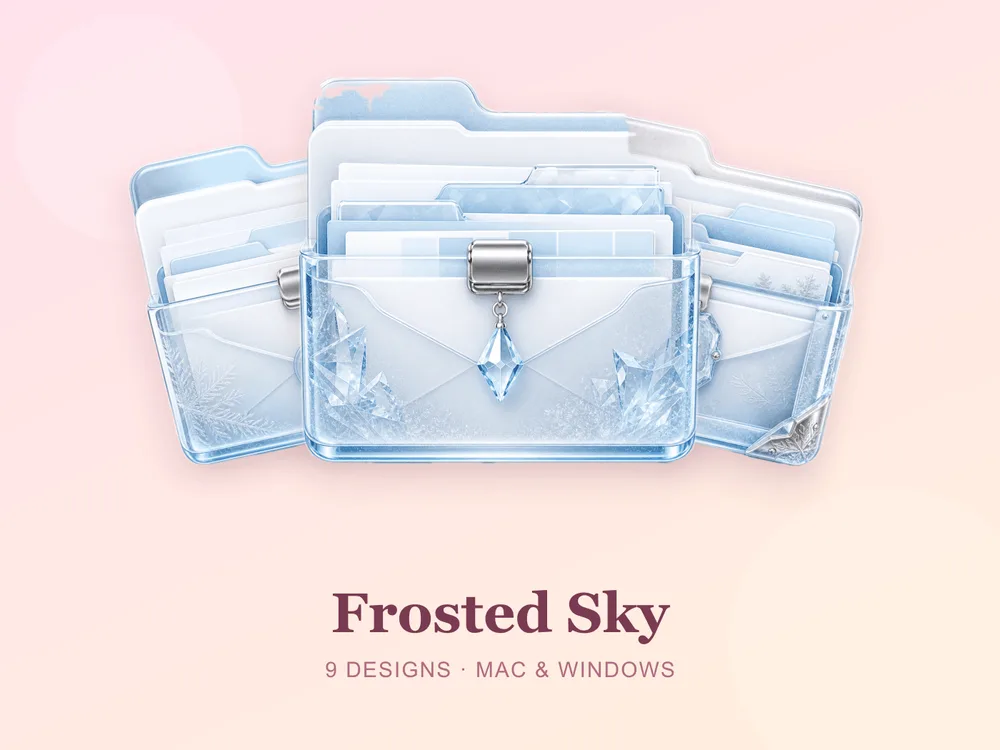
- Frosted Sky — soft blue frosted glass; calm and easy on a busy desktop.
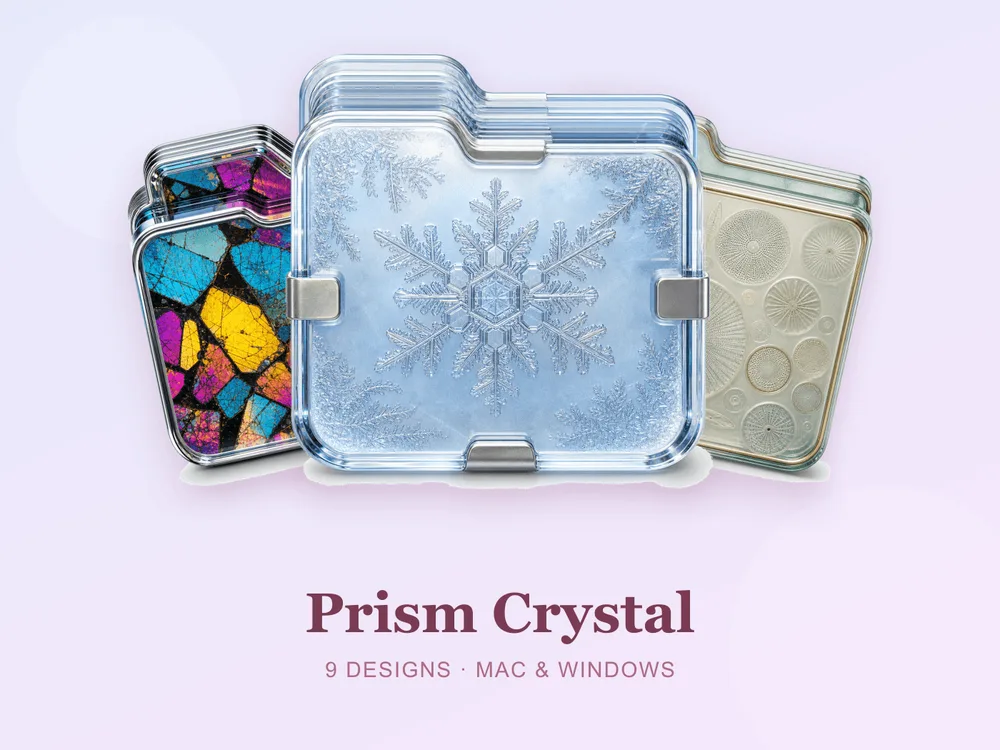
- Prism Crystal — cut-crystal refraction with real depth; the showiest of the six.
If you'd rather match the system's new bolder icon colours than its glass, the 3D and glossy sets are the other natural fit.
macOS 27 folder icons: quick FAQ
Does the Get Info method still work in macOS 27?
Yes — as of the public beta, dragging an .icns file onto the icon in Get Info behaves exactly as it did in Tahoe and earlier. It's the long-standing macOS mechanism for custom icons, not a feature Apple reworked this cycle.
Do I need macOS 27 to use custom folder icons? No. The Get Info method works on every recent macOS release. The built-in Customize Folder panel is the newer part — that one needs macOS 26 Tahoe or later.
Will my existing custom icons survive the upgrade?
Custom icons are stored with the folder, so they carry across an in-place upgrade. Keep your original .icns files anyway — if you ever migrate to a new Mac or do a clean install, you'll want to reapply them.
Why do my icons look different after updating? Golden Gate's Appearance slider changes how translucent the interface is, which changes how icons read against it. If your folders suddenly feel washed out or too heavy, move the slider before you blame the icons.
Do these work on Windows too?
Every FolderIcons set ships .icns for macOS and .ico/.png for Windows in the same download, so one unlock covers both. See our Windows guide.
The short version
Use Customize Folder when you want a quick colour. Use Get Info when you want a desktop that actually looks like something. The second one takes about a minute longer and is the entire difference between "I tagged some folders" and "someone designed this".
Browse the FolderIcons gallery — 217 original, hand-crafted sets for macOS and Windows. Three are free for every member; unlock the rest with credits and own them forever. For the full walkthrough on older systems, see How to Change Folder Icons on Mac, and to turn new icons into a genuinely tidy desktop, our organization guide.
Your folders, ready for Golden Gate.